DXF files are a key component in the metal cutting process, especially when working with CNC (Computer Numerical Control) machines. These files allow seamless communication between design software and cutting equipment. But even experienced designers and engineers can run into problems when working with these files. From improper scaling to overlapping lines, small mistakes can result in wasted material, time and effort. This article examines some of the most common mistakes made when preparing these files for machining and offers solutions to help you avoid them.
Mistake 1: Incorrect layering
Layering is essential for organizing different elements of a design file, such as cutting paths, engraving details, and material markings. However, improper use of layers can confuse the CNC machine, resulting in inaccurate cuts or misplaced engravings.
Why it's a problem
If layers are not properly organized or labeled, the machine may interpret a design element intended for engraving as something that needs to be cut. This can lead to costly errors and rework, as well as inefficient cutting operations.
How to avoid it
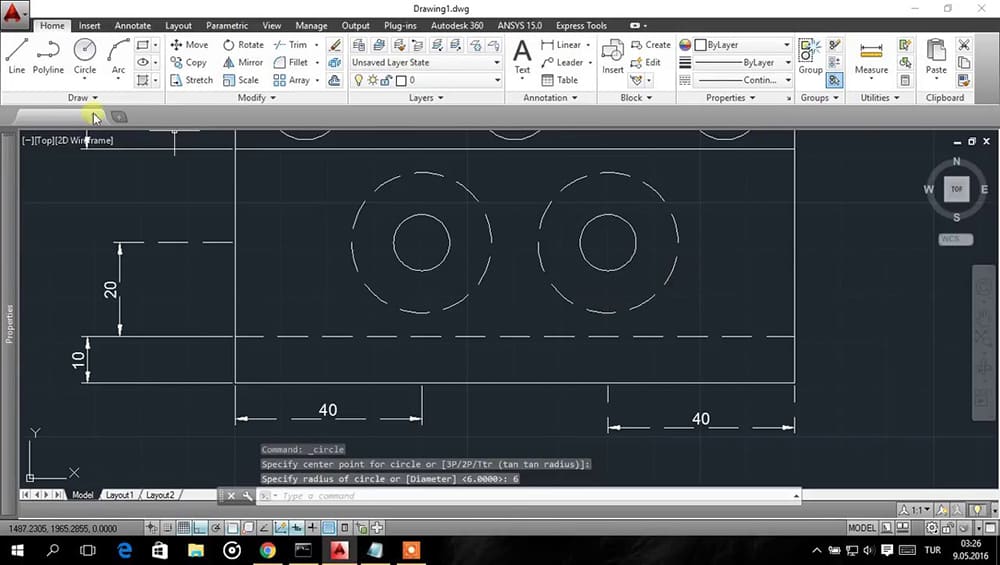
To avoid this problem, carefully manage the layers in your design file. Each type of operation, such as cutting, engraving, or marking, should be placed on a separate layer. Use clear names such as "Cutting Path" or "Engraving Detail" to make it easy for both the CNC machine and the operator to understand the purpose of each layer. Most design software, including AutoCAD and SolidWorks, allow you to create and manage layers effectively, ensuring a smooth transition from design to execution.
Mistake 2: Overly Complex Designs
While intricate designs may look visually impressive, they can create significant challenges during the cutting process. Too many details can overload the CNC machine, resulting in poor-quality cuts, longer production times, or even tool wear.

Why it's a problem
Excessive nodes and vertices in a design can cause the machine to make more movements than necessary. This increases cutting time and can reduce the accuracy of the cuts. In addition, overly detailed designs can result in files that are too large for the machine to process efficiently.
How to avoid it
Simplify your design by reducing unnecessary detail, especially in areas where precision isn't critical. Use design software tools to eliminate excess knots and smooth curves. Most CAD software has functions such as "simplify" or "optimize" to reduce complexity without losing important features. This helps the CNC machine run more efficiently and produce cleaner, more accurate cuts.
Mistake 3: Improper Scaling
Scaling is another common issue that can cause major problems in machining. If the design is scaled incorrectly, the final product may not meet the required specifications, resulting in wasted material and production time.

Why it's a problem
If the dimensions in the design don't match the actual material size or the machine settings, you'll end up with parts that are too big or too small. For example, a part designed to be 50 mm wide could be cut at 50 inches wide if the units between the design and the machine do not match.
How to avoid this
Make sure your design software and the CNC machine are set to the same units of measure-whether it's millimeters, inches, or some other standard. Always check the scaling before exporting the file for cutting. Including a reference measurement or test cut can help verify that the scaling is correct before committing to the final part.
Error 4: Overlapping or Duplicate Lines
Overlapping or duplicate lines are a common problem in design files, especially when importing designs from other programs or when combining multiple elements into a single file.

Why it's a problem
Overlapping or duplicate lines can cause the CNC machine to cut the same area multiple times, resulting in wasted material, increased cutting time, and wear on the cutting tools. It can also result in poor quality cuts with rough or uneven edges where the material has been overcut.
To avoid this
Before exporting the file for cutting, use the cleanup tools in your design software to remove any overlapping or duplicate lines. Programs such as AutoCAD offer commands such as "OVERKILL" that automatically detect and eliminate redundant lines. Manually checking your design for overlap in areas where different shapes intersect can also help ensure a clean file that's ready to cut.
Mistake 5: Failure to clean up the file
As a design progresses through various stages, it often accumulates unnecessary elements such as extra nodes, unconnected paths, or leftover guides. If these elements are not cleaned up before the file is exported, they can confuse the CNC machine and cause errors during the cutting process.

Why it's a problem
These extraneous elements can cause the CNC machine to pause or stop, misinterpret the cutting paths, or waste material by cutting areas that shouldn't be cut. They also increase file size, slowing down both the design process and the cutting operation.
How to avoid it
Always take the time to clean up your design before you export it. Use the "purge" or "optimize" functions in your CAD software to remove unnecessary nodes, unconnected paths, and other elements that aren't part of the final design. This streamlines the file and makes it easier for the CNC machine to perform the cuts accurately and efficiently.
Mistake 6: Ignoring Cut Order
The order in which the CNC machine makes cuts can have a big impact on the overall quality and efficiency of the job. If the cutting sequence isn't planned properly, the machine may make inefficient movements, resulting in longer production times and possible damage to the material.
Why it's a problem
Poorly planned cutting jobs can cause material to shift, warp, or become unstable, especially when large sections are cut before smaller areas are stabilized. Not only does this reduce the quality of the final product, but it can also result in mistakes or wasted material.
How to avoid it
Many CNC software programs allow you to manually specify the order in which different parts of the design are cut. Prioritize cuts that stabilize the material, such as smaller sections or holes, before moving on to larger areas. By carefully planning the cut sequence, you can ensure that the material remains stable and the machine operates efficiently.
Troubleshooting and error correction
Even with careful planning, errors can occur. Here are some troubleshooting tips to help you identify and resolve common problems:
- Use a Design Viewer: Before performing the actual cut, use a DXF viewer to review the design and ensure that all paths and elements are properly aligned.
- Simulate the Cutting Process: Many CNC programs allow you to run a simulation of the cutting process. This helps you identify potential problems, such as overlapping lines or incorrect cutting sequences, before you start cutting the material.
- Test Cuts: When you're working with a new design or material, consider performing a test cut on a scrap piece. This will allow you to confirm that the design file is working correctly and that the scaling, cut order, and other parameters are set correctly.
Bottom Line
By understanding and avoiding these common mistakes, you can ensure that your files are optimized for smooth, efficient CNC cutting. Proper layer management, simplifying designs, eliminating overlapping lines, and cleaning up unnecessary elements will not only improve the quality of your cuts, but also reduce production time and material waste. With careful preparation and attention to detail, your designs will be translated into high-quality metal products with minimal errors.