Optimizing files for CNC (Computer Numerical Control) cutting is an essential step in ensuring precision, efficiency, and accuracy. Even the most detailed design can result in errors or wasted material if not properly optimized. Although DXF files are one of the most popular formats for transferring designs to CNC machines, proper preparation is key to achieving the best results. In this article, we will cover essential techniques for optimizing these design files, with a focus on how to improve the performance of CNC machines during metal cutting operations.
Why Optimization Matters

CNC machines interpret digital design data to cut, engrave or mill materials. However, not all files are created with cutting in mind. Overly complex or unoptimized designs can cause several problems:
- Precision problems: The machine may not be able to follow paths accurately, resulting in parts that don't meet specifications.
- Increased Production Time: Inefficient files can slow down the cutting process, increasing the time it takes to complete a job.
- Material Waste: Improperly optimized designs can result in unnecessary material loss.
- Tool Wear: Excessive or inefficient cutting paths can accelerate tool wear and increase maintenance costs.
By optimizing your files, you can ensure that the CNC machine processes the design efficiently and produces high-quality results.
Steps to optimize files for CNC machines

1. Cleaning Up Unnecessary Nodes and Vertices
Design files often contain excess nodes or vertices, especially if the design was imported from another software program. These extra points can slow down CNC machines, causing them to move inefficiently and cut inaccurately.
- How to Optimize: Use the "simplify" or "reduce" tools available in most CAD software to minimize the number of unnecessary nodes without losing detail. This will reduce the file size and make the cutting process smoother.
2. Simplify complex designs
Complex designs can look impressive, but they can also cause significant problems for CNC machines. Excessive detail, such as too many curves or highly intricate patterns, can slow the machine down and increase the likelihood of errors.
- How to Optimize: Focus on simplifying design elements that don't contribute to the functionality of the part. Reducing intricate details where possible can significantly increase cutting speed without sacrificing the overall quality of the design.
3. Organizing Layers for Clearer Cutting Paths
When creating a design for CNC cutting, the organization of layers is critical. Layers allow you to separate different elements of the design, such as cutting paths, engraving lines, or markers. Clear layer organization makes it easier for the CNC machine to interpret the design and make the cuts correctly.
- To optimize: Make sure each element is placed on a different layer. For example, all cutting paths should be placed on one layer, while engraving or etching details should be placed on another layer. This will help prevent confusion and improve the accuracy of the machine's movements.
4. Eliminate Overlapping or Duplicate Lines
A common problem in CNC cutting is overlapping or duplicate lines in the design file. These problems can cause the machine to make multiple cuts along the same path, resulting in unnecessary wear on the cutting tool and wasted material.
- How to Optimize: Most design software includes tools to detect and remove overlapping lines. Manually inspecting your file for duplicates is also a good practice, especially in areas where multiple shapes or paths intersect.
5. Ensure proper scaling
Incorrect scaling is a common problem that can ruin an otherwise perfect design. A small scaling error can result in parts that don't fit together, or components that are too large or too small for the intended application.
- How to Optimize: Before exporting your design, double-check the units of measurement. Make sure the scale used in the design matches the scale used by the CNC machine. Including a reference dimension in the design can also help ensure proper scaling.
6. Adding Tabs for Stability
When cutting small parts or designs with intricate features, parts of the material can shift or fall off the cutting bed if not properly secured. Adding small tabs to the design will help keep everything in place during cutting.
- How to optimize: Place small tabs or bridges strategically throughout the design to connect the cut parts to the surrounding material. These tabs can be easily removed after cutting, ensuring that the design remains stable throughout the process.
7. Optimize Cutting Order
The order in which the machine cuts the design can have a significant impact on production time and tool wear. Poorly organized cutting paths can cause the machine to move inefficiently, increasing cutting time and reducing the accuracy of the final product.
- How to optimize: Arrange the order of cuts logically. For example, smaller, more detailed cuts should generally be completed before larger cuts. Some software allows you to manually control the order of cuts, which can result in faster, more efficient cutting.
Choosing the Right Optimization Software
Choosing the right software to create and optimize your design files is critical. Here are some options that offer powerful optimization tools for CNC cutting:
- AutoCAD: One of the industry leaders, AutoCAD offers powerful tools for designing and optimizing files. Its robust feature set allows users to organize layers, reduce nodes, and simplify complex paths.

- SolidWorks: A popular choice for industrial applications, SolidWorks excels at creating and optimizing files for CNC cutting. It offers detailed tools for organizing layers, optimizing cutting paths, and ensuring proper scaling.
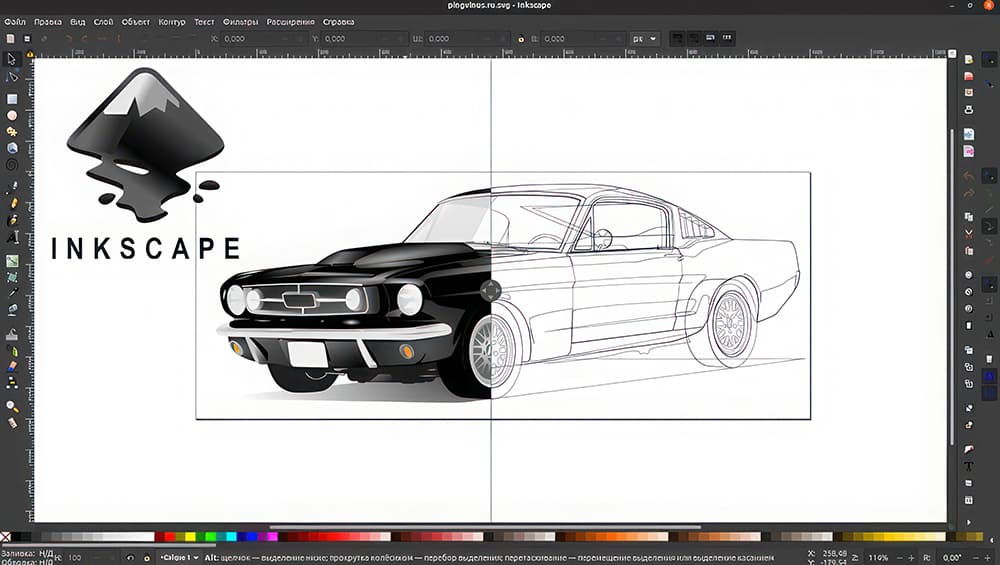
- Inkscape: For users looking for a free option, Inkscape provides basic tools for optimizing design files. While it lacks some of the advanced features of paid programs, it's a good option for simpler projects or hobbyists.
- DraftSight: DraftSight offers similar functionality to AutoCAD at a lower price. It includes many useful features for cleaning up designs and organizing them for CNC cutting.


Effect of optimized files on CNC cutting
1. Improved accuracy
Optimized files ensure that CNC machines follow the intended cutting paths with greater accuracy. By reducing unnecessary nodes, simplifying designs, and eliminating duplicate lines, the machine can process the design more efficiently and with fewer errors, resulting in higher quality cuts.
2. Faster production time
Properly optimized designs reduce cutting time by allowing the CNC machine to operate more efficiently. Shorter cutting paths, simplified designs and well-organized layers contribute to faster production, which can help meet deadlines and reduce labor costs.
3. Less material waste
By optimizing the file for efficiency, you can minimize material waste. Clean, well-organized files ensure that the machine cuts only where needed, reducing waste and saving on material costs.
4. Extended tool life
Files optimized for CNC cutting reduce unnecessary tool movements and minimize wear on cutting tools. This results in longer tool life, which in turn reduces maintenance costs and downtime.
Bottom Line
Optimizing files for CNC cutting is a critical step in improving the efficiency and accuracy of your metal cutting operations. By following best practices such as cleaning up knots, simplifying designs, and organizing layers, you can reduce production time, minimize material waste, and improve the quality of your final product. With the right tools and techniques, you can ensure that your CNC machines perform at their best and deliver exceptional results.